
Briefly: if Yandex services aren't working in Vietnam, change your DNS to Google's—8.8.8.8 and 8.8.4.4—in your router or device's network settings. If that doesn't help, the problem isn't with your DNS, but with geolocation restrictions—in which case a VPN might help.
How to fix a problem with Yandex in Asia
Setting Up Google DNS: A Step-by-Step Guide
If you have problems accessing Yandex services, changing DNS servers to more stable ones, such as Google DNS, often helps. Below is a detailed instruction on how to do this both on the router and directly on the computer.
1. Setting up on the router
Step 1. Login to the router control panel
Open your browser and enter the IP address of your router (usually 192.168.1.1 or 192.168.0.1; check the case or documentation for details).
Enter your login and password (by default, often admin/admin, if not changed).
Step 2: Find DNS settings
Find the "Internet", "WAN", "Network" or "Connection Settings" section.
Look for the fields for DNS servers - they may be filled with your ISP's addresses.
Step 3. Replacing DNS
In the Primary DNS field, enter 8.8.8.8.
(Optional) In the secondary field – 8.8.4.4.
Save the settings. If necessary, reboot the router.
2. Setting up on a computer
If you don’t have access to your router settings, you can change the DNS directly on the device.
Windows
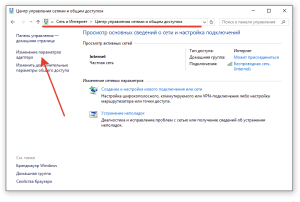
Open Control Panel → Network and Sharing Center.
Click "Change adapter settings". See the image below.
Right-click on the active connection and select Properties.
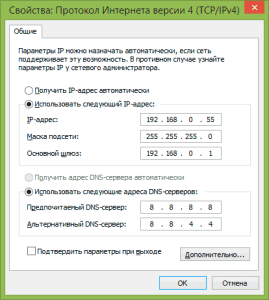
Select Internet Protocol Version 4 (TCP/IPv4) and click Properties.
Check "Use the following DNS server addresses" and enter:
Preferred DNS: 8.8.8.8
Alternative DNS: 8.8.4.4
Click "OK" to save the changes. See the image below.
 How to Fix Yandex Problem in Asia
MacOS
Open System Preferences → Network.
Select your active connection (Wi-Fi or Ethernet) and click Advanced.
Go to the "DNS" tab.
Click "+" and add:
8.8.8.8
8.8.4.4
Click OK, then Apply.
Linux (using Ubuntu with Network Manager as an example)
Open Network Settings.
Select an active connection and click on the gear icon.
Go to the IPv4 tab.
Change the method to Automatic (DHCP) addresses only or Manual.
In the "DNS" field enter:
8.8.8.8, 8.8.4.4
Save the changes and restart the connection.
By following this guide, you will be able to quickly change DNS servers and, most likely, solve problems with access to Yandex services. I hope this note will be useful for anyone who has encountered a similar problem.